This 1.54-inch passive display pendant has a compact housing
The screen uses a 1.54-inch black, white, and red tri-color or black and white dual-color electronic paper display
No need to install batteries, compact and light.
Through the mobile APP ( Supports Android system, does not support iOS system )
Easily realize any changes to pictures and texts, and the pictures and texts will be permanently saved without fading.
APP Install
AnyTag App (Android)
Please click the link above to download
Where is the NFC chip usually located on a mobile phone?
1. On the top back of the phone.
2. Around the camera on the back of the phone.
3. In the middle of the back of the phone.
Which mobile phones currently support NFC function?
1. Huawei Mate series, P series, mid- and high-end models in the past three years.
2. Mid-range and high-end models of Samsung, Xiaomi and Sony in the past three years.
Mobile phone operation
The following uses an Android phone as an example to describe how to update the displayed content through the APP. .
1. Click the APP icon, as shown below:
2. Activate the APP (be familiar with the NFC position of the phone), put the product on the corresponding position of the phone's NFC or pairing is successful, as shown in the following figure:
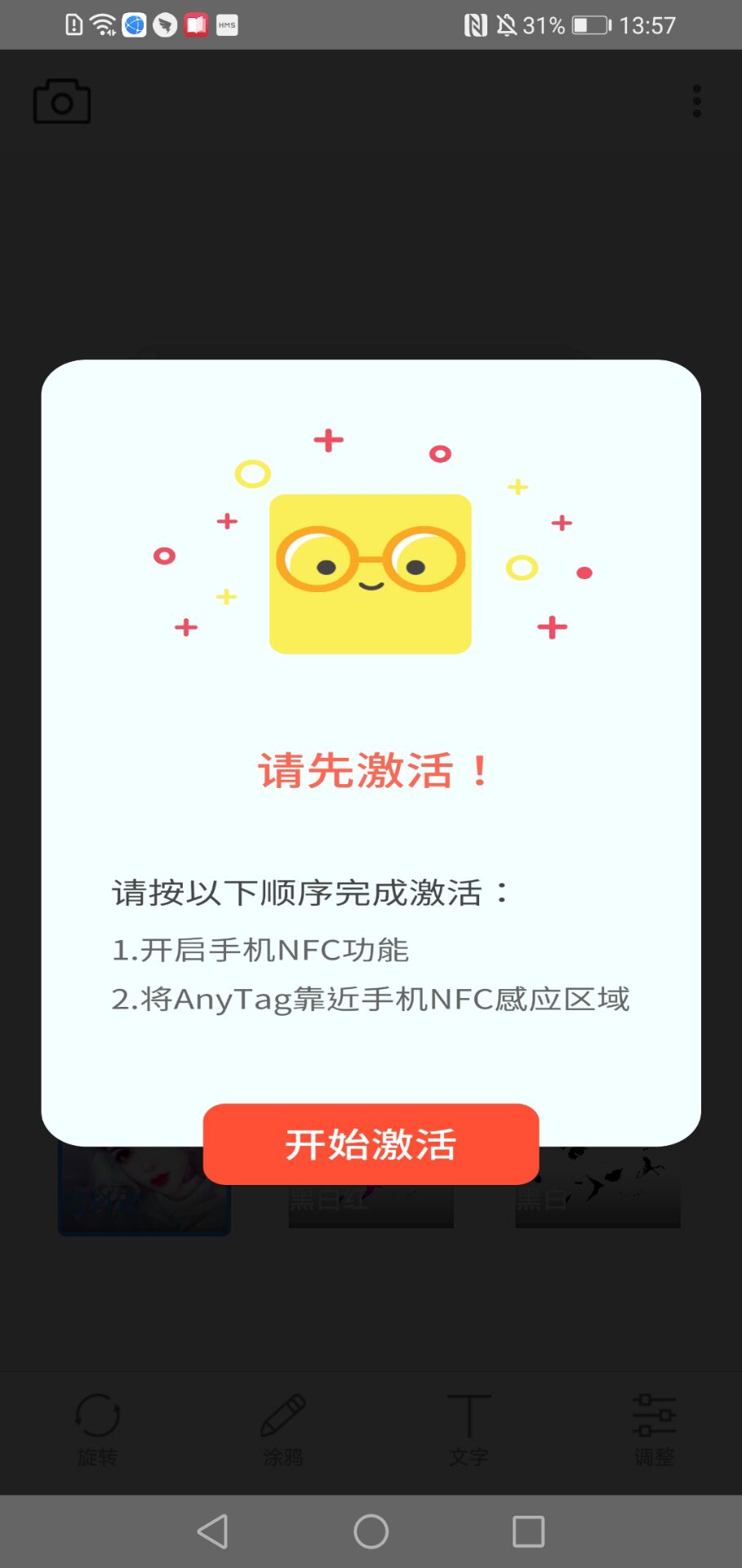
3. After activation, enter the APP main interface, as shown below:

4. Edit and send pictures
4.1 Click the camera icon in the upper left corner, enter and select a picture, and enter the picture cropping interface, as shown below.


4.2 After the picture is cropped, click [Select] to enter the modified main interface.
This interface can also perform operations such as [Algorithm Selection], [Rotation], [Graffiti], [Text], and [Adjustment] on the image, as shown in the following figure:
4.3 After the image is edited, place the product on the NFC corresponding position (usually NFC is on the top of the back of the phone).
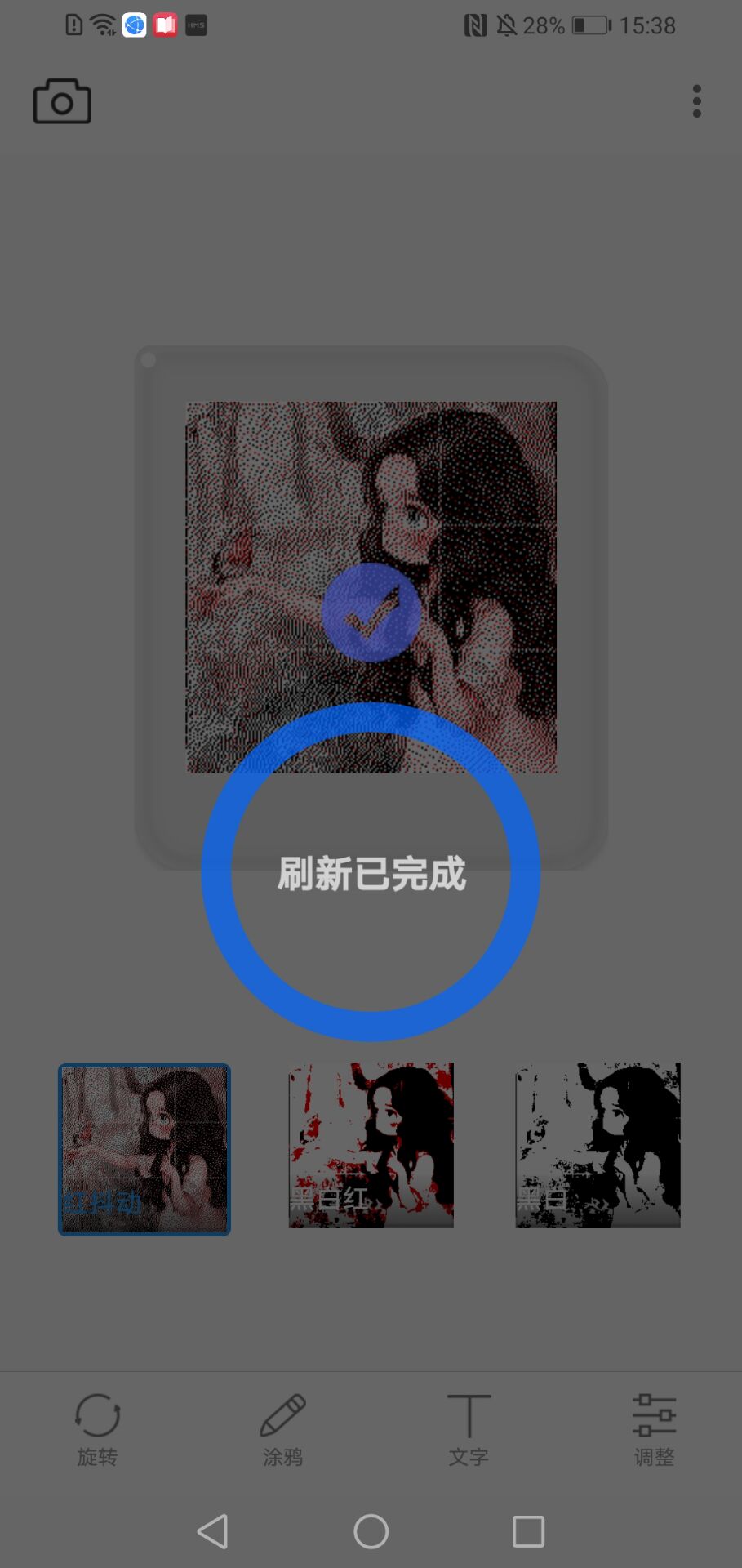
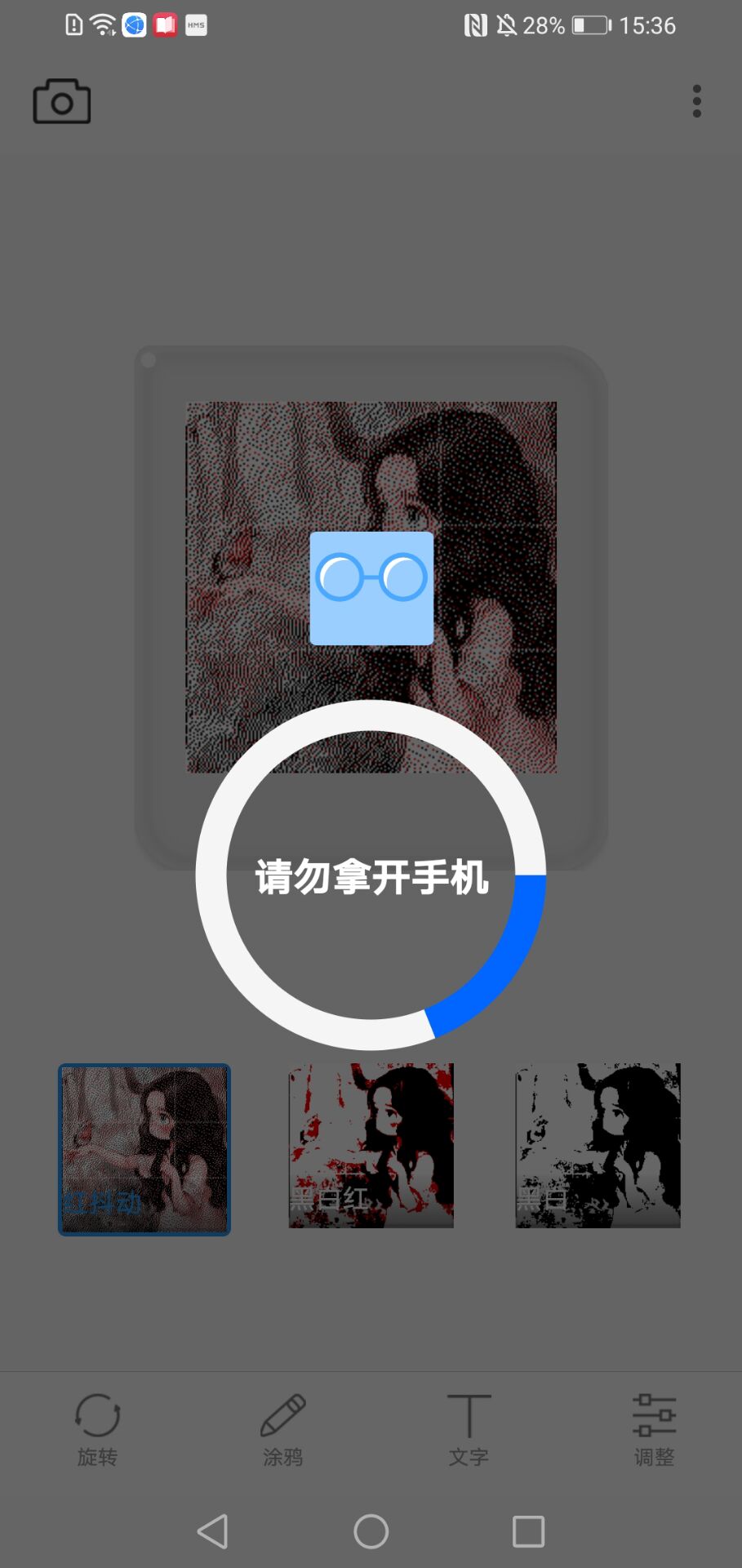
Click the picture at this time, and the picture will start loading and sending until the whole process is completed.
(During this process, the indicator light of the product is red light on---red light flashing---blue light on, and the blue light on means the process is completed).
As shown in the following figure:
 |
|


4.4 After the picture is transferred, the APP returns to the main interface. If you want to query the pictures you have sent in the past,
You can click the button in the upper right corner, as shown below:
5. Text editing and sending

5.1. Click [Text] at the bottom of the APP main interface to enter the text editing interface, as shown below:
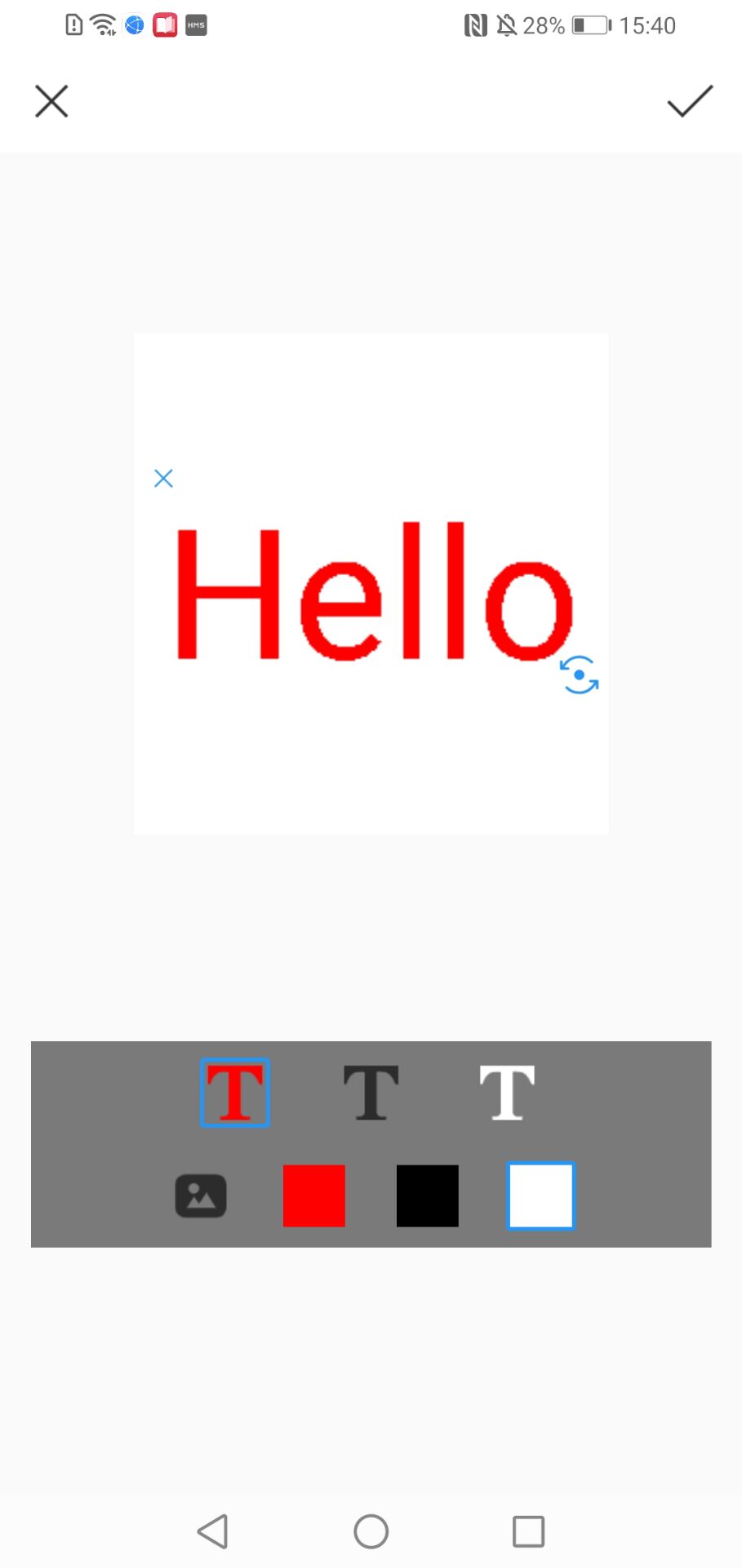
5.2. In this interface, the bottom row of icons can select the image background color, and the second row can select the font color, as shown in the figure below:
5.3. After the text is edited, click [✔] in the upper right corner to return to the main interface.
This interface can also perform operations such as [algorithm selection], [rotation], [graffiti], [text], and [adjustment] on the image.
As shown in the following figure: As shown in the following figure:
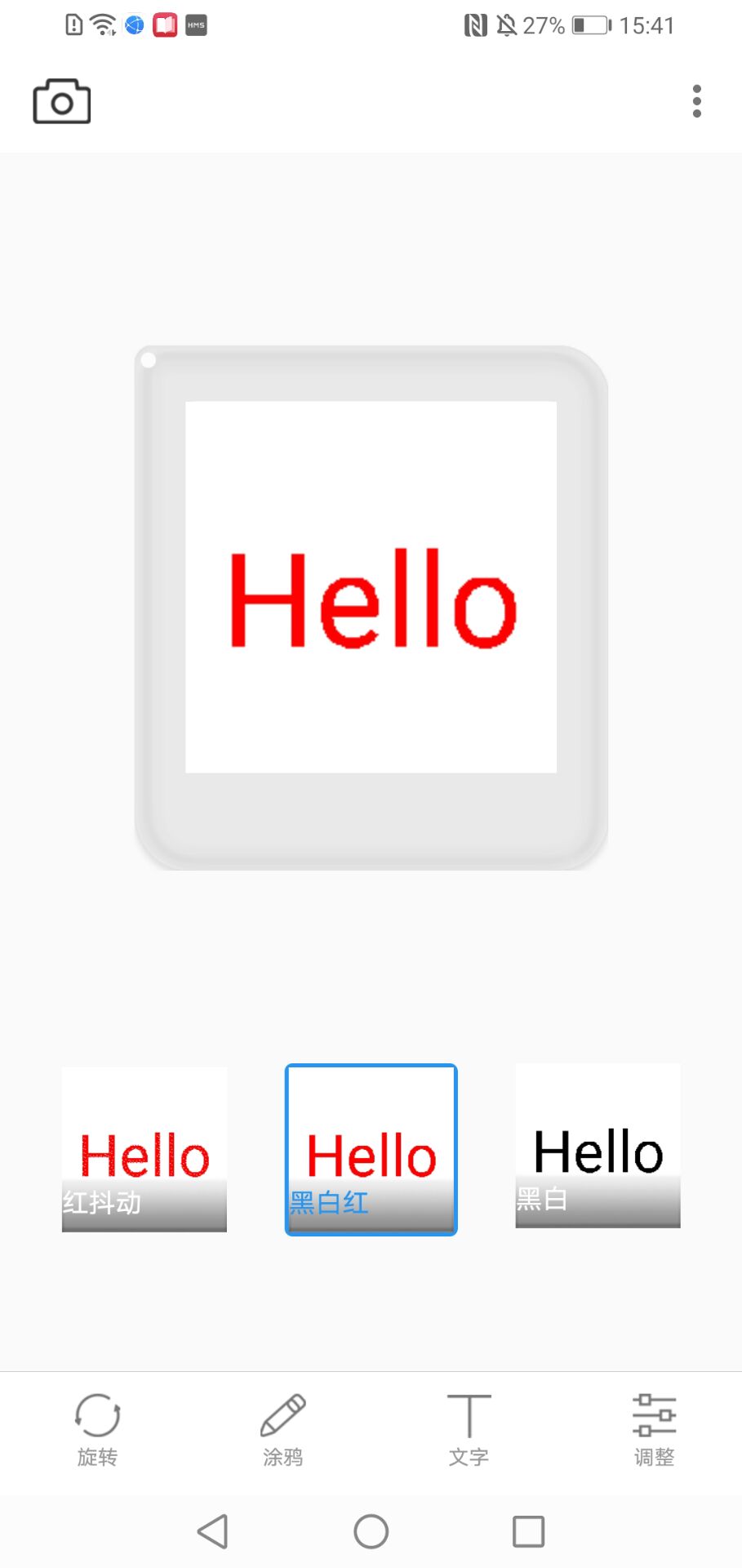
5.4. After the text is edited, place the product at the corresponding position of NFC (usually NFC is at the top of the back of the phone).
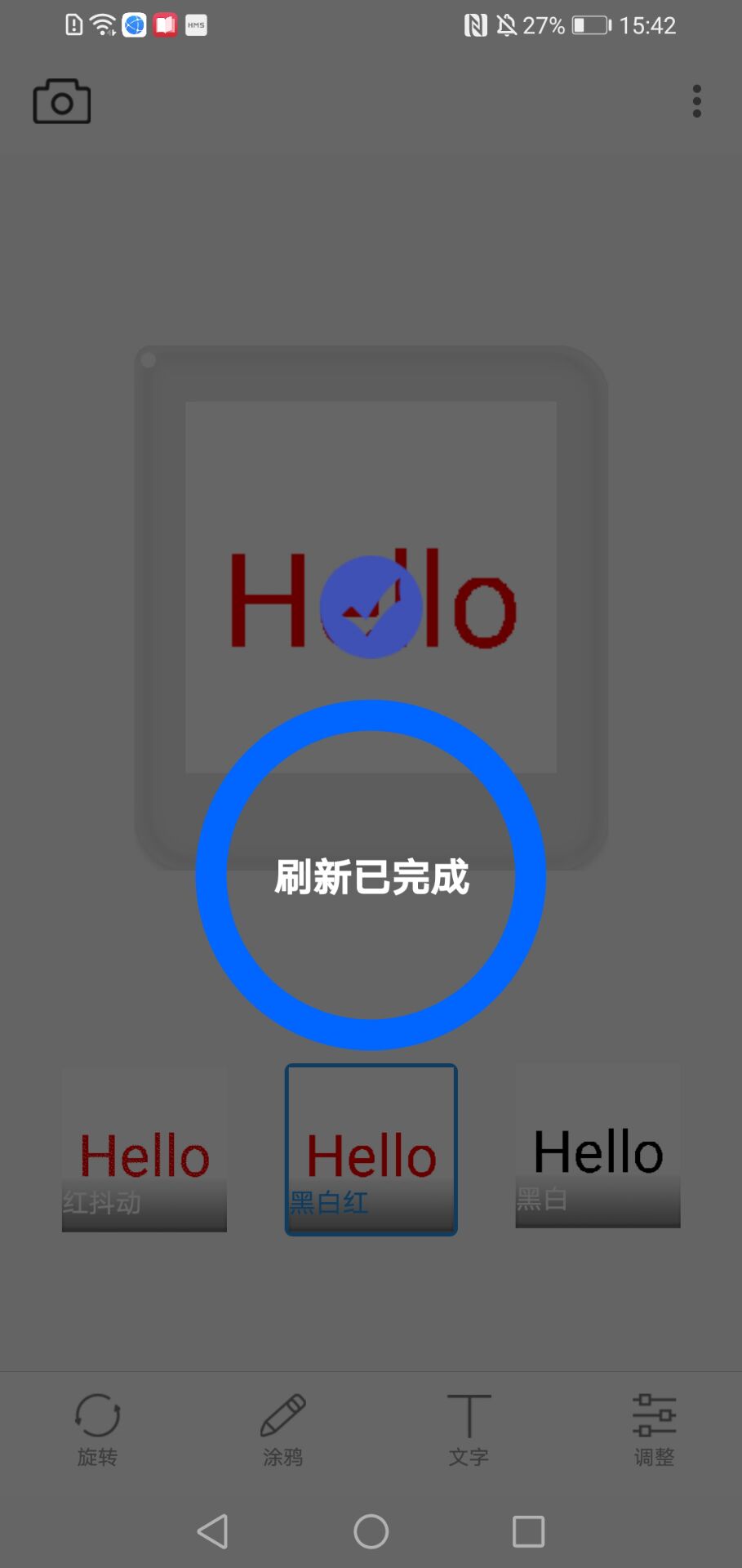
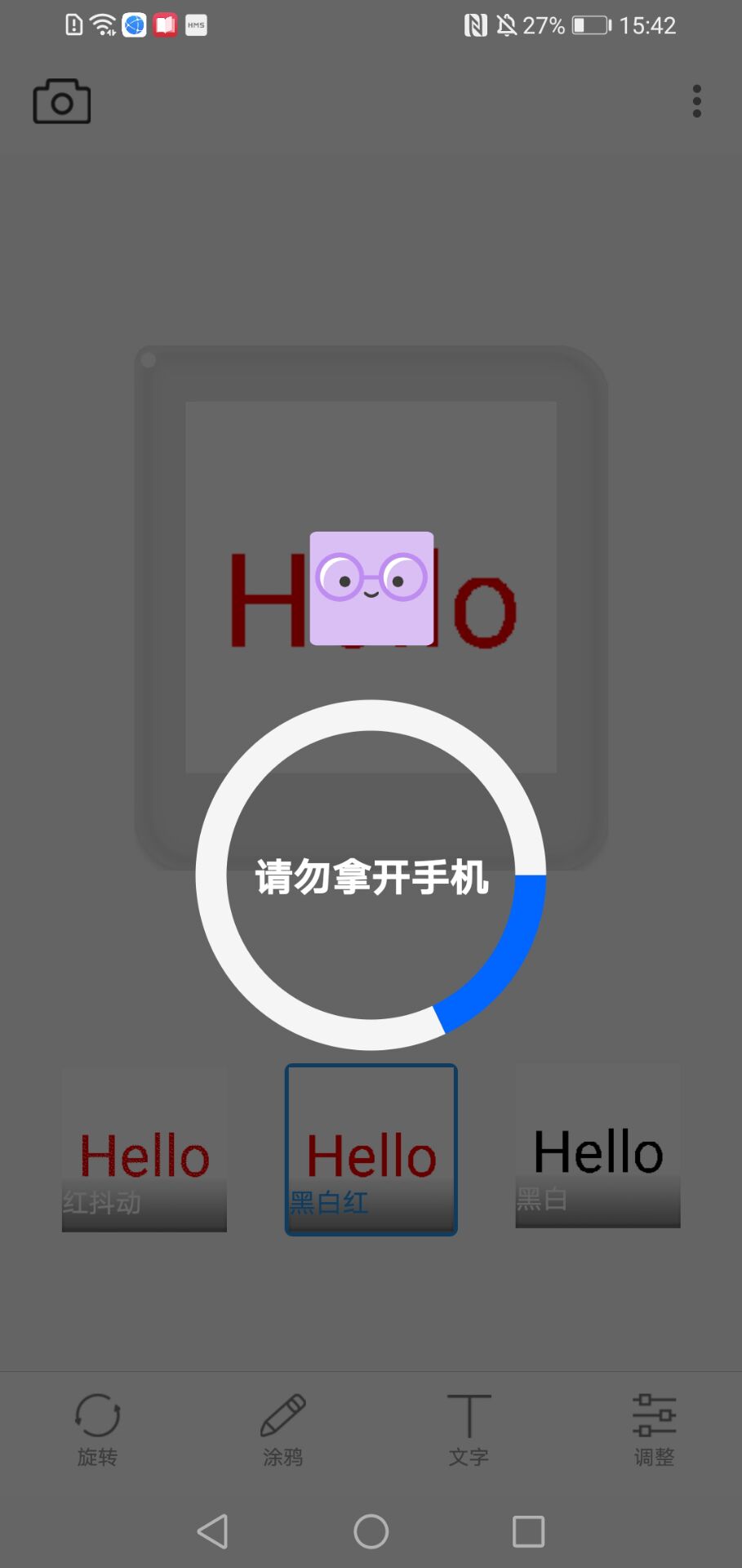
Click the picture at this time, and the picture will start loading and sending until the whole process is completed.
(During this process, the indicator light of the product is red light on---red light flashing---blue light on, and the blue light on means the process is completed).
As shown in the following figure:
 |
|
5.5 After the text transmission is OK, the APP returns to the main interface. If you want to query the pictures you have sent in the past,
You can click the button in the upper right corner, as shown below: